Most presets sound impressive for two seconds, then boring. What separates professional sound design from “nice preset scrolling” is modulation: the way sounds change over time.
Modulation: The Difference Between Static and Alive
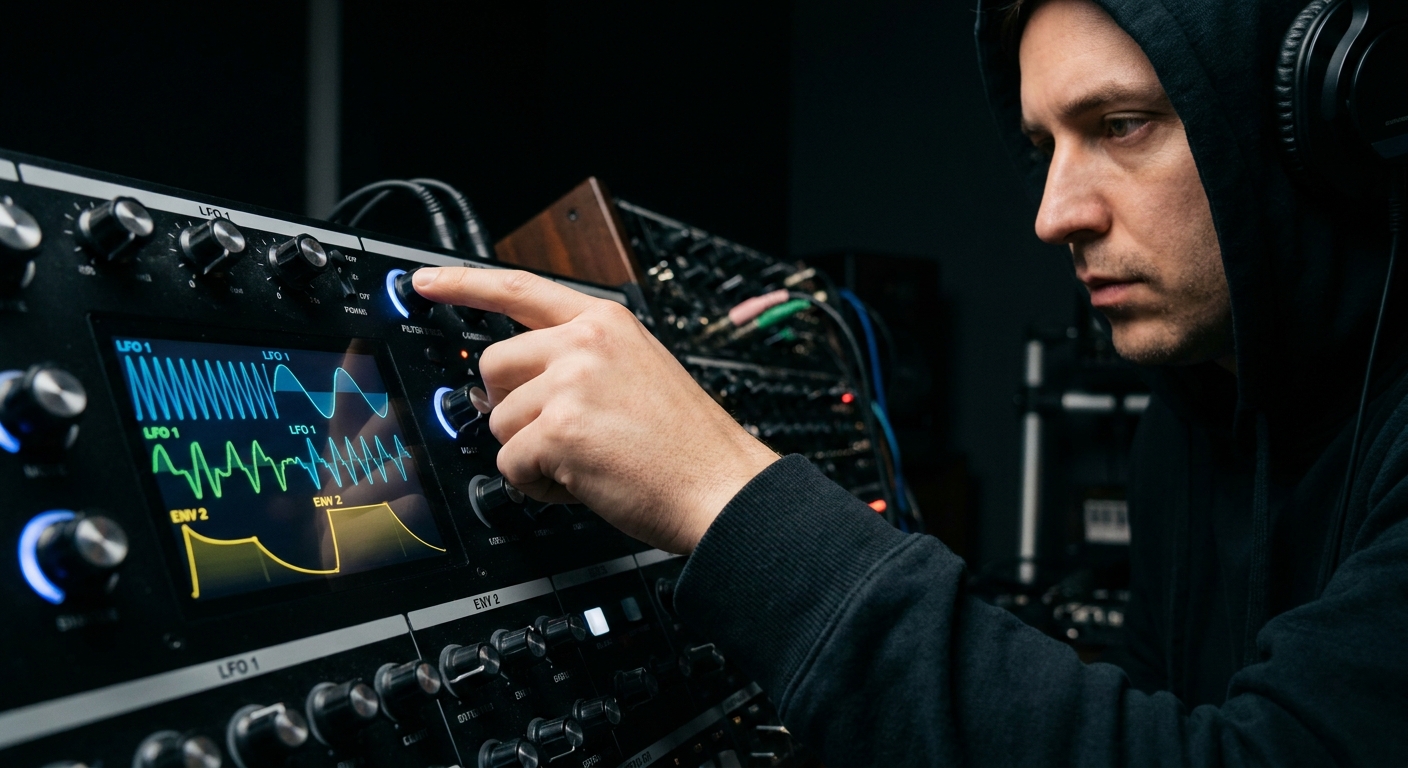
LFOs, envelopes, and macros let you animate parameters—filter cutoff, pitch, wavetable position, FX mix—so your patches evolve, groove, and respond to your playing.
This article dives deep into modulation strategies with DAW-specific tips for Ableton Live, FL Studio, and Logic Pro. We’ll go beyond basic wobble LFOs and into musical, performance-ready modulation systems.
The Modulation Toolkit: A Quick Overview
Envelopes
Shape changes once per note: attack, decay, sustain, release. Great for:
- Plucks (fast decay on filter)
- Punchy bass (snappy amplitude + filter env)
- Expressive pads (slow filter and volume attack)
LFOs (Low-Frequency Oscillators)
Repeat continuously. Can be tempo-synced or free-running. Good for:
- Rhythmic filter or volume movement
- Subtle pitch drift
- Auto-pan or tremolo effects
Macros / Controllers
Single knobs that control multiple parameters. Ideal for performance and automation.
Mod Sources Beyond the Basics
- Velocity – how hard you hit the note
- Aftertouch – pressure after the key is pressed
- MIDI CC / MPE – slide, glide, per-note expression
Strategy 1: Envelope-Driven Character
Envelopes are the most underrated modulation tools. They’re not just for volume; they can animate almost anything.
Filter Envelope for Punch
For basses and plucks, use a dedicated envelope targeting the filter cutoff.
- Attack: 0–5 ms
- Decay: 80–250 ms
- Sustain: low or zero
- Release: short (50–150 ms)
This creates a bright initial transient that quickly darkens—instant punch without harshness.
Ableton (Wavetable/Analog):
- Assign Env 2 to Filter 1 cutoff.
- Adjust Env 2 to control how “snappy” the bass feels.
- Use Env 2 on cutoff with positive modulation.
- Fine-tune the curve for sharper or smoother punch.
- Use Filter Env with modulation depth on the filter module.
Serum / FL Studio:
Logic (Alchemy):
Envelopes for Wavetable Motion
Instead of a static wavetable position, use an envelope to sweep through harmonics on each note.
- Shorter decay: more percussive tone change.
- Longer decay: evolving timbre over sustained notes.
This is amazing for plucks, mallets, and organic synths.
Strategy 2: LFOs for Groove and Movement
LFOs don’t just wobble dubstep basses—they define rhythm and feel.
Rhythmic Modulation
Assign LFOs to:
- Filter cutoff (classic wubs)
- Volume (gating, tremolo)
- Panning (auto-pan)
- FX mix (reverb swell, delay pumping)
Set LFO to sync mode, tied to note values (1/4, 1/8, 1/16, dotted, triplets). Now you’re modulating in time with the track.
Ableton:
- Use Shaper MIDI or LFO (Max for Live) to modulate any parameter.
- Use built-in LFOs in plugins or link any control to an LFO via the Link to controller… dialog.
- In Alchemy/ES2, use tempo-synced LFOs.
- For global parameters, use MIDI Draw or custom modulation assignments.
FL Studio:
Logic:
Free-Running LFOs for Organic Movement
Unsynced LFOs create non-repeating motion:
- Very slow LFO on filter cutoff (0.05–0.2 Hz)
- Slight LFO on pitch (±3–5 cents) for analog drift
- LFO on wavetable position or FM amount for evolving textures
These work especially well on pads, drones, and textures.
Strategy 3: Macros as Performance Instruments
Macros are your front panel—the controls you actually touch while playing or automating.
Designing a Macro System
Give each macro a musical job, not a technical one.
Examples:
- Macro 1: "Brightness" – controls filter cutoff, wavetable position, and slight distortion drive.
- Macro 2: "Space" – controls reverb mix, delay feedback, and high-cut on the reverb.
- Macro 3: "Attack" – adjusts amp attack and filter envelope attack.
- Macro 4: "Movement" – increases LFO depth on pan, pitch, and FX.
Now one knob equals a scene change for the sound.
DAW-Specific Tips
Ableton:
- Put synth + FX inside an Instrument Rack.
- Map key parameters to Macro controls.
- Use Fruity Formula Controller, or map multiple parameters to the same hardware knob.
- Use Patcher to build macro-style UIs.
- Use Smart Controls in the channel strip to link multiple plugin parameters to one knob.
FL Studio:
Logic:
Automate these macros over an arrangement and your sound design becomes emotionally dynamic, not just technically interesting.
Strategy 4: Modulation Combinations (The Fun Stuff)
Once you’re comfortable, start modulating modulators.
LFO Modulating an Envelope Amount
Example: Use an LFO to change how much an envelope opens the filter.
Result: Sometimes the note is bright, sometimes darker, all based on the LFO cycle. Great for semi-random movement.
Envelope Modulating LFO Depth
Example: At note onset, the LFO depth is low; as the note sustains, the LFO depth increases.
Result: Pads or drones that get more animated the longer you hold them.
Multiple LFOs at Different Rates
- LFO 1 (fast) → small modulation of filter cutoff.
- LFO 2 (slow) → larger modulation of wavetable position.
They interlock to create complex, non-repeating motion.
Strategy 5: Musical Randomness and Humanization
Controlled randomness adds life.
Random Mod Sources
Many synths provide a random or sample & hold mod source.
Use it for:
- Very small, random pitch offsets per note (voice detune).
- Slight level variations for percussive hits.
- Random pan for texture layers.
Velocity and Expression
Tie musical expression to how you play:
- Velocity → filter cutoff (hit harder = brighter).
- Velocity → envelope amount (harder = more attack).
- Aftertouch → vibrato depth or reverb mix.
- In Sampler/Simpler, map velocity to filter and volume.
- Use Velocity MIDI effect to shape the response curve.
- In piano roll, use velocity, release, and mod X/Y per note.
- Use MIDI Transform to sculpt velocities.
- Assign aftertouch in Alchemy/ES2 to vibrato, cutoff, etc.
Ableton:
FL Studio:
Logic:
Workflow Examples: Modulation in Action
Example 1: Animated Bass in Ableton Wavetable
- Osc: Saw + Sine (sub), low-pass filter at 200 Hz.
- Env 2 → Filter cutoff for punchy attack.
- LFO 1 (sync 1/8) → Filter cutoff for rhythmic movement.
- LFO 2 (slow, 0.2 Hz) → wavetable position for long-term variation.
Map Macro 1 to:
- Filter cutoff - LFO 1 amount - Distortion drive on an Audio Effect Rack.
Play a simple bassline and automate Macro 1 in the drop for controlled, musical evolution.
Example 2: Evolving Pad in Serum (FL Studio)
- Choose two wavetables, blend 50/50.
- Use Env 1 for slow volume attack (500 ms) and long release.
- LFO 1 (unsynced, slow) → wavetable position and filter cutoff.
- LFO 2 (sync 1/4) → subtle pan and chorus mix.
- Macro 1: "Air" – links to filter cutoff and high-shelf EQ.
Hold a chord for bars at a time; the pad will breathe and shimmer without feeling random.
Example 3: Performance Lead in Logic Alchemy
- Design a bright, moderately detuned saw-based lead.
Assign:
- Velocity → filter envelope amount. - Aftertouch → vibrato depth. - Mod Wheel → reverb and delay mix. 3. LFO (sync 1/16) → small amount of pitch for subtle vibrato, controlled by aftertouch.
Now the way you play directly shapes the sound—perfect for expressive solos.
Managing Complexity: Don’t Get Lost in Modulation
It’s easy to overdo it. To stay in control:
- Start with one purposeful modulation (e.g., filter env for punch).
- Add one rhythmic and one slow LFO.
- Only then add macros and randomness.
- Label macros and mod assignments if your synth allows.
Ask: If I turn this modulation off, does the sound lose something important, or just get cleaner? Keep only what serves the musical idea.
Final Thoughts: Modulation as Storytelling
Modulation isn’t about impressing other producers with complex routing diagrams. It’s about:
- Giving each note an arc (envelopes)
- Embedding groove and motion into the sound itself (LFOs)
- Allowing human control and expression (macros, velocity, aftertouch)
Treat your synth like an instrument that responds, not a static tone generator. Master modulation, and your sound design will feel alive, intentional, and deeply musical.