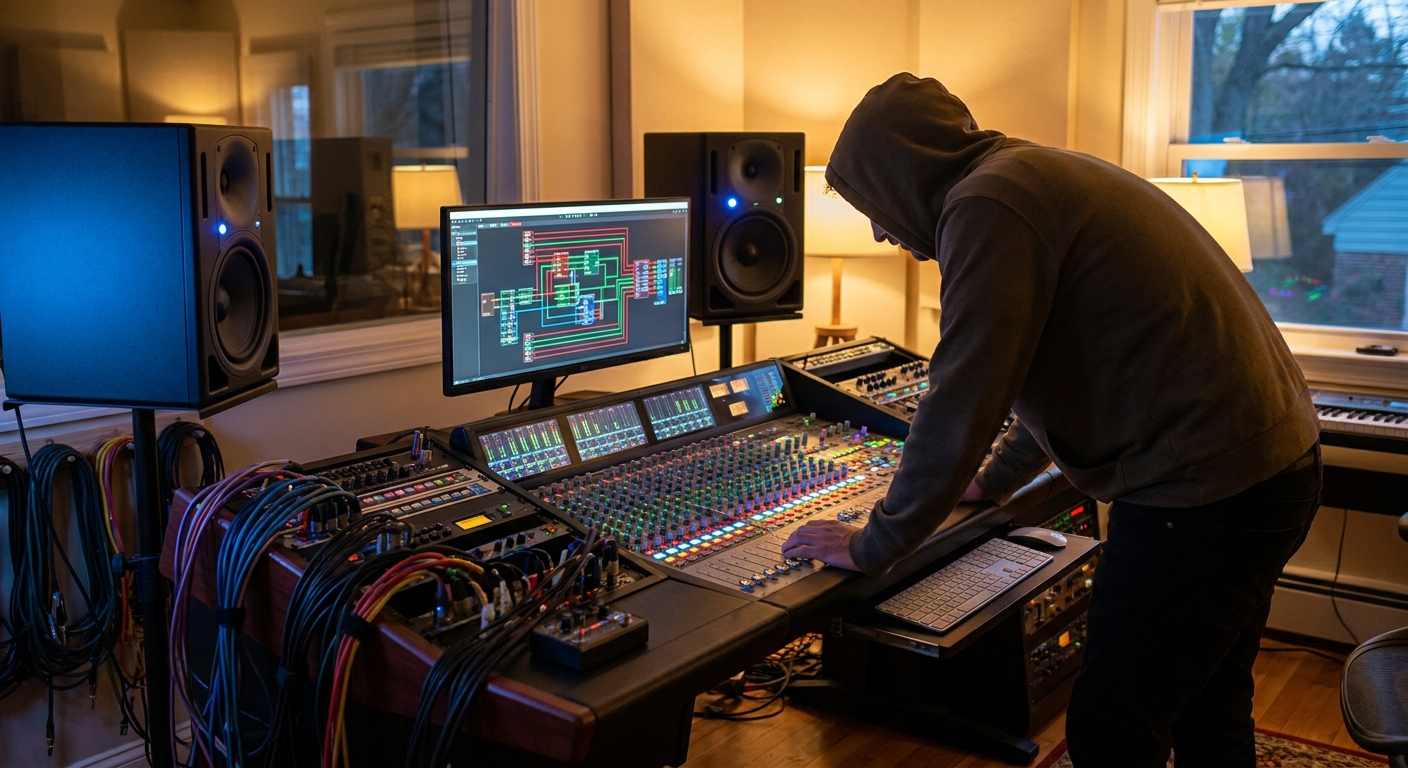
Most producers obsess over presets and plugins, but ignore the way audio actually moves through their project. That movement—signal flow—determines how clean, loud, and flexible your beat will be when it’s time to mix, arrange, or send stems.
Why Signal Flow Is the Hidden Superpower of Beat Makers
Think of signal flow as the plumbing of your studio. If it’s messy, everything downstream is compromised. If it’s clean, every tweak is faster and more musical.
This article walks through practical, DAW-specific routing strategies designed specifically for beat makers.
1. Core Concept: From Source to Speakers
At its simplest, signal flow follows this path:
Instrument/Audio Track → Group/Buses → Mix Bus → Master Bus → Audio Interface → Speakers
Each stage is another chance to:
- Control level
- Shape tone
- Add character
Your goal is not to cram everything on the Master, but to distribute processing intelligently along the chain.
2. Recommended Beat-Making Routing Template
Let’s build a template you can adapt in any DAW.
2.1 Track Groups (Buses)
Common groups:
- DRUM BUS – Kicks, snares, hats, percussion.
- BASS BUS – 808s, subs, bass synths.
- MUSIC BUS – Keys, pads, guitars, synths, samples.
- FX BUS – Risers, impacts, sweeps, textures.
- VOCAL BUS (if you record demos).
All buses feed into a MIX BUS, which then feeds into the MASTER.
2.2 DAW Implementation
Ableton Live:
- Set Drum tracks → Audio To: Drum Bus.
- Drum Bus → Audio To: Mix Bus.
- Mix Bus → Master.
- Route channels to dedicated Mixer inserts.
- Link those inserts to a Drum Bus insert, then to a Submix (Mix Bus), then to Master.
- Use Aux Channels as buses.
- Assign track outputs to Bus 1 (Drums), Bus 2 (Music), etc.
- Route buses to a final Mix Bus Aux, then to Stereo Out.
- Select tracks → Right-click → Add Bus for Selected Tracks.
- Then create a Main Sub-Bus feeding into Main Out.
FL Studio:
Logic Pro:
Studio One:
3. Insert FX vs. Send FX: When and Why
3.1 Insert FX
Inserted directly on the track. Use when:
- The effect changes the fundamental tone (EQ, compression, saturation).
- You need different settings for each sound.
3.2 Send/Return FX (Aux FX)
Shared effects, accessed via sends to Return/Aux tracks.
Use for:
- Reverb (room, plate, hall).
- Delay (slap, ping-pong, tape echo).
- Some parallel compression chain.
- Consistent ambiance across elements.
- Lower CPU use.
- Easy global adjustments.
Benefits:
Example:
- Create Reverb Bus with a reverb plugin at 100% wet.
- Add sends from snare, claps, vocal chop.
- Adjust send levels per track instead of putting separate reverbs everywhere.
4. Building a Drum Routing Powerhouse
4.1 Individual Tracks → Drum Bus
Route:
- Kick In
- Kick Sub (if layered)
- Snare Top
- Snare Bottom / Clap layer
- Hats
- Percussion
All to Drum Bus.
On the Drum Bus:
- EQ (Subtractive) – Remove shared mud (e.g., 200–350 Hz dip, if needed).
- Bus Compressor – 2–4 dB gain reduction to glue.
- Saturation/Tape – subtle color.
4.2 Parallel Drum Compression
Create a Parallel Drum Bus:
- Send from Drum Bus to Drum Parallel Aux at 0 dB.
- On Drum Parallel, insert heavy compressor (slow attack, fast release), maybe extra saturation.
- Blend the Drum Parallel in quietly under the clean Drum Bus.
- Ableton: Use Return track for parallel drum comp.
- FL Studio: Route Drum Bus to another insert in parallel.
- Logic: Use Bus Send pre-fader or post-fader to an Aux track.
- Studio One: Use Sends to a dedicated parallel bus.
DAW-specific:
5. Managing Low End with Bass and 808 Routing
5.1 Bass Bus and Sidechain
Route all low-end elements to a Bass Bus:
- 808s
- Sub bass
- Bass synths
On the Bass Bus:
- EQ: HPF at 20–30 Hz, tame low mids.
- Light compression for consistency.
Sidechain Setup:
- Put a compressor on Bass Bus.
- Sidechain input: Kick or Drum Bus.
- Set threshold so you get 2–4 dB GR on each kick.
Now, no matter how many low-end tracks you add, they all react to the kick in one place.
5.2 Using a Sub Bus for Surgical Control
For extra control:
- Route only sub-frequency instruments (808, sub synth) to a Sub Bus.
- Use a spectrum analyzer on the Sub Bus.
- Shape low-end with precise EQ and multiband compression.
- FabFilter Pro-Q 3
- Waves RBass (careful, don’t overdo)
- Stock Multiband Dynamics in your DAW
Plugins that help:
6. Music and FX Buses for Cohesion
6.1 Music Bus
Route:
- Keys, pads, pianos
- Guitars
- Synths
- Melodic samples
Processing ideas:
- Glue Comp: Very gentle bus compression.
- Tilt EQ: Tiny high-shelf boost at 8–10 kHz for air.
- Subtle Stereo Widener (if needed, and check mono compatibility).
6.2 FX Bus
Route:
- Impacts, risers
- Reverse swells
- Ambient textures
These often benefit from:
- Heavier reverb/delay to place them further back in space.
- HPF at 150–300 Hz to keep FX out of the low end.
7. The Mix Bus: Your Pre-Master Playground
The Mix Bus is where all groups converge before the Master.
Use it to:
- Do gentle bus EQ (broad tone shaping).
- Add a subtle bus compressor.
- Insert a tape or console emulator if desired.
Suggested Mix Bus chain:
- EQ: Small moves only. ±1 dB broad shelves.
- Bus Compressor: 1–2 dB gain reduction, slow attack, auto/medium release.
- Saturation: Gentle, just for flavor.
Avoid heavy limiting here; save that for mastering (or at least keep a separate, non-limited version of your beat).
8. Master Bus: Reference, Don’t Rely On It
On your Master:
- Loudness meter (LUFS).
- True peak meter.
- Optional quick limiter for a reference bounce.
- Leave -6 dB true peak headroom if sending to a mastering engineer.
- For self-contained beat sales, aim for around -9 to -7 LUFS integrated, but protect your transients.
- iZotope Tonal Balance Control
- ADPTR Metric AB
- Your DAW’s built-in metering tools
Guidelines:
Use reference plugins like:
9. Stems and Collaboration: Routing That Scales
When your routing is organized, exporting stems is trivial:
- Print stems from each Bus: Drums, Bass, Music, FX, Vocals.
- Optionally, print key subgroups (e.g., Kick & Snare only, 808 only, Melodic Samples only).
- Bounce Bus outputs as separate files.
- Or batch-export all tracks while muting/soloing buses.
Most DAWs let you:
Clean routing = less confusion when sending files to artists, mix engineers, or labels.
10. Example: Minimalist Trap Template (Concrete Setup)
Here’s a straightforward routing layout for a trap beat:
Tracks
- KICK, SNARE, CLAP, HATS, PERC → DRUM BUS
- 808, SUB → BASS BUS
- KEYS, BELL, PAD → MUSIC BUS
- RISER, IMPACT, VOCAL CHOP → FX BUS
- DRUM BUS → MIX BUS
- BASS BUS → MIX BUS
- MUSIC BUS → MIX BUS
- FX BUS → MIX BUS
- DRUM PARALLEL (from Drum Bus send)
- VOCAL PARALLEL (if using vocals)
- VERB PLATE
- VERB HALL
- DELAY 1/4
- DELAY 1/8 PING-PONG
- MIX BUS → MASTER
Buses
Parallel Buses
FX Returns
Final
Save this as a template and modify per project.
Final Takeaway
Once you understand signal flow, your DAW stops being a maze and becomes a console. You’ll mix faster, export cleaner stems, and keep your creative brain free for the musical decisions that matter most. Build one solid routing template, refine it over time, and you’ll feel like you’re working in a pro studio—even if you’re just on headphones at your desk.